
BorrowBox - eBooks & eAudiobooks
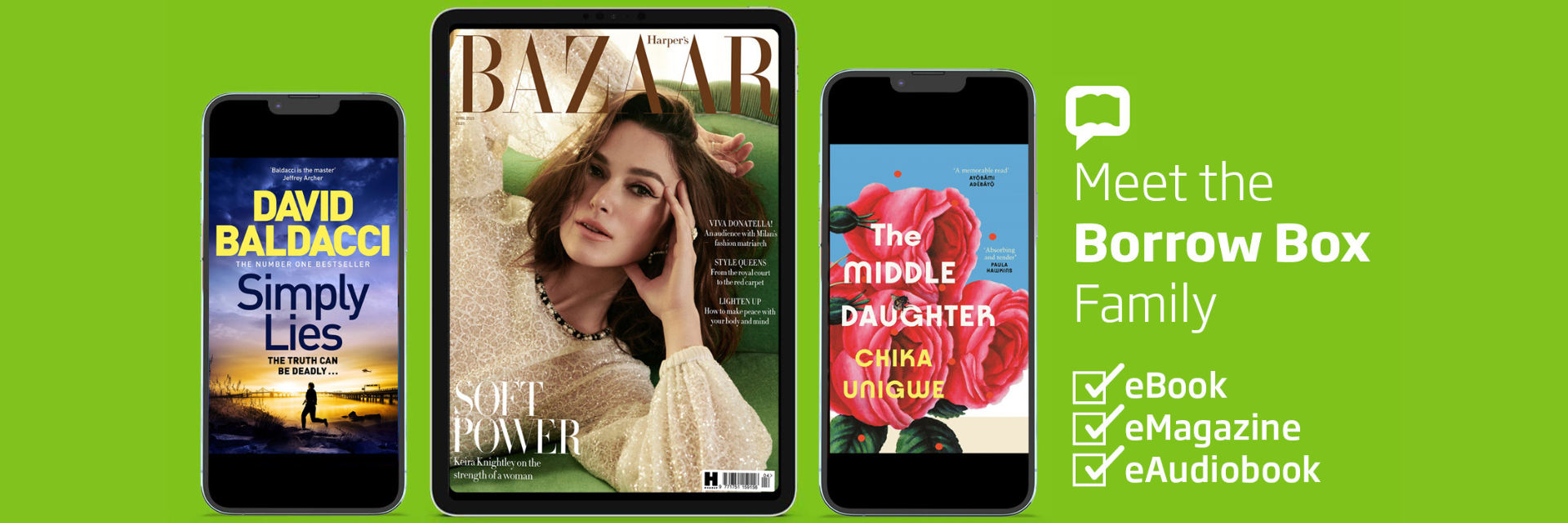
Borrow Box provides free eBooks, eAudio and eMagazines. It is compatible with smartphones, tablets, PCs and all ebook readers except Kindle.
Access a wide range of fiction and non-fiction titles for adults, teens, and children with BorrowBox from Bolinda Digital. Download eBooks. eAudiobooks or ePress titles directly to your computer or mobile device via the BorrowBox app, and enjoy reading or listening anywhere, anytime.
BorrowBox has an inbuilt eBook reader and eAudiobook player, making it easy to immerse yourself in your next book on the go.
You will need your Libraries Tararua membership number and PIN/password to access Borrowbox. If you're not a member, join online for free.
If you have any issues logging in or getting started, please contact us or come and visit.
Step 1: Use your Libraries Tararua membership number and PIN/password to access Borrowbox.
For help with your pin, click here.
Step 2: You will be asked to complete a registration process with BorrowBox, which includes agreeing to their Terms and Conditions, setting your preferences and providing a valid email address.
BorrowBox will send you an email when a hold is available to borrow or an item is due to expire. It will automatically return items on the due date, or you can return them early yourself.

Some eReaders can download titles directly from BorrowBox. If your eReader isn’t able to access BorrowBox directly, you may need to download Adobe Digital Editions. This software allows you to transfer eBooks from your computer to your eReader. (Kobo requires this).
Please note: Amazon Kindle eReaders are not a compatible device for BorrowBox.
For eReaders:
Some eBooks from BorrowBox can be transferred to certain eReaders from your computer using Adobe Digital Editions.
Before the first use, you will need to authorise both your computer and Kobo for use with Adobe Digital Editions - this One-Time Setup and Authorisation process is described in a box below.
Once complete, you can follow the Downloading and Transferring eBooks to Kobo process each time you borrow a new book.
- Login and browse the BorrowBox website on your computer.
- Select and confirm your loan, then click Download eBook (Adobe ePub).
- Once the URLLink.ascm file has downloaded, a pop-up will appear asking whether to Open, Run, or Save. Choose Open with Adobe Digital Editions.
- Plug your eReader into your computer, ensuring it appears in the left panel of Adobe Digital Editions.
- Drag your eBook onto your eReader to transfer it.
For eAudiobooks (to MP3 devices):
- Login and browse the BorrowBox website on your computer.
- Select and confirm your loan, then click Download complete eAudiobook.
- If a pop-up asks whether to Open, Run, or Save, select Save and save the .zip file to your computer.
- Unzip the mp3 file to a folder.
- Transfer the eAudiobook files to your device using iTunes, a file manager, or simply listen to them on your computer.
Our staff members may be able to assist with troubleshooting BorrowBox. Please bring your device with you.
A) Visit Adobe Digital Editions download centre and download the setup file for your operating system.
- Note for Mac users: ADE version 3.0 is not compatible with the latest macOS (Catalina). Please download the latest version of ADE (Version 4.5 or greater).
- Note for Windows users: We have found ADE 3.0 more stable than the latest version (4.5). We recommend downloading Version 3.0 on Windows computers.
- Find and open the installation file on your computer.
- Follow the onscreen instructions to install Adobe Digital Editions.
B) Once you’ve installed Adobe Digital Editions, you’ll need to create an Adobe ID. If you already have an Adobe ID, skip to Step C.
- In Adobe Digital Editions, click Help, then Authorize Computer.
- Click Create an Adobe ID in the Computer Authorization window.
- Enter your information in the appropriate fields, then click Create account. Your Adobe ID is the email address used to sign up, and is ready to use immediately with the password you created.
- In Adobe Digital Editions, click Help, then Authorize computer. Enter your Adobe ID and password.
c) Authorize your eReader
- Turn on your eReader.
- Connect your eReader to your computer using the Micro USB cable which came with the device.
On your eReader: Tap Connect.
- On your computer: Open Adobe Digital Editions.
- Under 'Devices', right-click on Kobo eReader.
- Click Authorize Device. (If you don't see 'Kobo eReader' under Devices, close Adobe Digital Editions, then open it again.)
- Click Authorize Device, then OK.
Your Pin/Password
When you join the library, you are asked to set a password/pin. This and your membership number is used to login to our app, catalogue, or any of our digital services.
These are fully encrypted. The recommended format is at least 8 characters including upper case, lower case, letters & numbers. Initially, a symbol cannot be used but you can reset your original password to include a symbol.
Should you forget your password, or wish to change it, please go to the catalogue site, click login at the top right, then 'Forgotten your Password'. You should receive an email link to reset it promptly (or it might go to junk mail).
Alternatively, please visit or ring your local library and a staff member can assist. Note that you may be asked to provide identification.
Sometimes our digital resources will block you if your library account has expired, or if you owe a debt. If you have problems logging in, please call or email during staffed hours and we'll be happy to help if we can.
Unverified? Verification can only be done by library staff. Please email (or call) with your name, card number, full address and phone number/s.